Key takeaways
- Best overall for 4K gaming: Elgato 4K X
- Best for HDMI 2.1 displays and high-refresh gaming: AVerMedia Live Gamer ULTRA 2.1
- Best internal-card choice: Elgato 4K Pro
- Best value for 1080p or 1440p: Elgato HD60 X
- Best standalone network encoder: Magewell Ultra Encode family
- Best for multi-source events and permanent installations: Epiphan Pearl Mini
The best hardware video encoders for dual PC setups depend on whether you need a capture card for a second streaming computer or a standalone device that can stream without one: for most gamers, the Elgato 4K X or AVerMedia Live Gamer ULTRA 2.1 is the practical choice, while Magewell and Epiphan are better for camera-heavy, always-on production.
As an Amazon Associate we earn from qualifying purchases at no extra cost to you.
First, choose the right kind of hardware
A dual-PC gaming setup normally uses a capture card, not a standalone encoder. The gaming PC sends video through HDMI to the capture device; the streaming PC receives that feed in OBS Studio, Streamlabs Desktop, or another application and performs the final H.264 or H.265 stream encoding on its CPU or GPU.
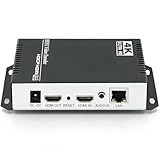
A standalone hardware encoder, such as the Magewell Ultra Encode or Epiphan Pearl Mini, accepts video and audio directly and publishes a stream over Ethernet or Wi-Fi. It is useful when you want to remove the streaming PC from the workflow, run a camera production, or create a reliable fixed installation.
That distinction matters: a capture card with HDMI passthrough can be excellent for dual-PC streaming but may not create a finished livestream by itself.
Best options by dual-PC situation
- Best overall for 4K gaming: Elgato 4K X
- Best for HDMI 2.1 displays and high-refresh gaming: AVerMedia Live Gamer ULTRA 2.1
- Best internal-card choice: Elgato 4K Pro
- Best value for 1080p or 1440p: Elgato HD60 X
- Best standalone network encoder: Magewell Ultra Encode family
- Best for multi-source events and permanent installations: Epiphan Pearl Mini
Head-to-head comparison
| Product | Input and output connections | Maximum capture or passthrough capability | Typical latency and workflow | Software compatibility |
|---|---|---|---|---|
| Elgato 4K X | HDMI 2.1 input and passthrough; USB-C to streaming PC | Up to 4K at 144 Hz passthrough; captures up to 4K at 60 fps, depending on mode | Low enough to play from the passthrough display; use the gaming monitor rather than the preview window | OBS Studio, Streamlabs Desktop, Elgato software, and UVC-compatible applications |
| AVerMedia Live Gamer ULTRA 2.1 | HDMI 2.1 input and passthrough; USB 3.2 connection to the streaming PC | Up to 4K at 144 Hz passthrough; capture modes vary by resolution and frame rate | Low-latency passthrough; suited to a 4K/120 or high-refresh console and PC chain | OBS Studio, Streamlabs Desktop, RECentral, and other UVC applications |
| Elgato 4K Pro | Internal PCIe card; HDMI 2.1 input and passthrough | Up to 4K at 60 fps capture with high-refresh passthrough modes | Very low capture delay; requires an available PCIe slot and suitable motherboard layout | OBS Studio, Streamlabs Desktop, and Elgato software |
| Elgato HD60 X | HDMI 2.0 input and passthrough; USB-C to the streaming PC | Up to 4K at 60 Hz passthrough; captures up to 1080p at 60 fps or 1440p at supported frame rates | Low-latency passthrough; a strong fit for 1080p/1440p dual-PC systems | OBS Studio, Streamlabs Desktop, Elgato software, and UVC applications |
| Magewell Ultra Encode | Model-dependent HDMI or SDI input, Ethernet, USB, and sometimes audio interfaces; generally no gaming-style passthrough | Model-dependent, commonly up to 4K input and network streaming | Encoding delay is normally higher than direct display passthrough; designed for stable delivery rather than competitive gaming | Browser-based configuration, RTMP, SRT, and other network workflows |
| Epiphan Pearl Mini | Multiple HDMI inputs, USB, Ethernet, and balanced or embedded audio options | Designed for multi-source HD production rather than ultra-high-refresh gaming | Production-oriented delay; excellent for recording, switching, and scheduled streaming | Web interface, RTMP/SRT workflows, and integrated production features |
Specifications can change with firmware, signal format, HDR settings, and the connected display. Check the exact refresh-rate combination before buying, especially if your gaming PC outputs 4K at 120 or 144 Hz.
What matters most in a dual-PC setup
Input and passthrough bandwidth
HDMI 2.0 is adequate for many 1080p and 1440p systems, but HDMI 2.1 is the safer choice for 4K at 120 Hz or higher. The capture resolution and passthrough resolution are not the same thing. A device may pass through 4K/144 while capturing a smaller 4K/60 or 1440p signal to the streaming PC.
For a standard wiring arrangement, connect the gaming PC to the capture card’s HDMI input, connect HDMI passthrough to the gaming monitor, and connect USB or PCIe to the streaming PC. Do not play from the OBS preview unless you have measured and accepted its additional delay.
Capture resolution versus stream resolution
Streaming platforms commonly receive 1080p video even when the source is 4K. A 4K capture card can still be worthwhile because it preserves a sharp source for recording, allows flexible downscaling, and supports a 4K gaming monitor. If your internet upload speed and streaming service limit you to 1080p, a high-end 4K card will not automatically improve the live broadcast.
Latency and synchronization
Passthrough latency is the delay between the gaming PC and the monitor. Capture latency is the delay visible in the streaming PC’s preview. These are separate. Competitive players should use passthrough and keep the preview for scene composition, alerts, and monitoring.
Audio can create a more noticeable problem than video delay. If game audio enters through HDMI while the microphone enters the streaming PC separately, use OBS sync offsets or a monitoring mixer to align speech, gameplay, and webcam video. Begin with a short test recording and adjust by milliseconds rather than guessing from the live preview.
Software and driver compatibility
USB capture cards that expose a UVC video feed are usually the easiest to move between OBS Studio, Streamlabs Desktop, video-conferencing software, and recording applications. Internal PCIe cards can reduce cable clutter, but they require a free slot, adequate case clearance, and compatible drivers.
Check whether your intended HDR, variable-refresh-rate, ultrawide, and HDCP settings are supported together. Protected movie and subscription-video signals generally cannot be captured, and a console or PC with HDCP enabled may produce a blank image.
When a standalone encoder is the better purchase
Choose a Magewell Ultra Encode or Epiphan Pearl Mini when the priority is dependable network publishing, not the lowest possible gaming latency. These devices can be mounted near a camera, lecture setup, or production switcher and run without a full streaming PC. They are especially useful when an organization needs scheduled streams, redundant recording, SRT contribution, or multiple destinations.
They are usually excessive for a bedroom gaming desk. A standalone encoder adds network configuration, a separate power supply, and a different control interface, while a capture card already fits naturally into a two-computer OBS workflow.
Physical setup and moving realities
Allow roughly 4 to 6 inches of ventilated space around an external capture device, particularly above its vents. Keep HDMI cables short enough to avoid a heavy loop pulling on the ports, but leave enough slack to move either computer for cleaning. A 6-foot USB cable is convenient; longer runs may need an active or powered solution.
An internal card needs approximately one full-height PCIe expansion position and enough clearance for the card, power connectors, and airflow. Measure the distance between the slot and the graphics card: a thick GPU can block the only practical capture-card position. External units are easier to move between desks and do not require opening the case.
| Desk situation | Recommended type | Why | What to verify before purchase |
|---|---|---|---|
| Small apartment or compact desk | External USB capture card | No PCIe installation and easier cable repositioning | Ventilation, USB 3.x port, and room for two HDMI cables |
| 4K/120 or 4K/144 gaming monitor | HDMI 2.1 capture card | Preserves high-refresh passthrough | Exact refresh, HDR, VRR, and capture-mode combination |
| 1080p or 1440p dual-PC stream | HD60 X-class HDMI 2.0 capture card | Lower cost without paying for unused 4K bandwidth | 1440p frame-rate support and audio routing |
| Permanent camera or event installation | Standalone network encoder | Can publish and record without a streaming computer | Ethernet, SRT/RTMP needs, audio inputs, and management access |
Bottom line
For most dual-PC gaming workflows, buy the Elgato 4K X or AVerMedia Live Gamer ULTRA 2.1 if you need HDMI 2.1, 4K capture, and high-refresh passthrough. Choose the Elgato HD60 X when your system is primarily 1080p or 1440p, and choose the Elgato 4K Pro when an internal PCIe installation suits your case. Select Magewell or Epiphan only when you specifically need a network encoder that can operate as a production appliance rather than a simple bridge to OBS.